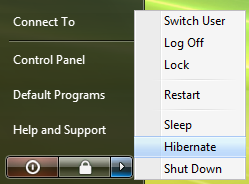
The Hibernate option is not available in Windows Vista- Enable it.
The Hibernate option is not available in Windows Vista
- Enable it.
In Windows Vista, you may experience one or more of the following symptoms:
• The Hibernate option is not available in the Start menu power options menu. • The Hibernate option is not available in the Shut Down Windows dialog box.
Note To open the Shut Down Windows dialog box, press ALT+F4.
• The Hibernate option is not available on the power button menu that appears on the secure desktop.
Note You can access the secure desktop's power button menu when you log off from Windows Vista.
CAUSE
This issue occurs if one of the following conditions is true:
• The Disk Cleanup Utility and has been used to delete the Hibernation File Cleaner. • The computer does not support the hibernation feature. • The hibernation feature is disabled. • The Hybrid Sleep feature is enabled.
The Hybrid Sleep feature puts the computer to sleep and generates a hibernation file when the user chooses the Sleep option in any of the power option menus. Therefore, Hibernate does not appear as a power option when Hybrid Sleep is enabled.
RESOLUTION
To resolve this issue, use the PowerCfg command-line tool to enable the hibernation feature. To do this, follow these steps.
1. Click Start button, type command in the Start Search box, right-click Command Prompt in the Programs list, and then click Run as administrator.
User Account Control permission If you are prompted for an administrator password or confirmation, type your password or click Continue. 2. At the command prompt, type powercfg /hibernate on.
MORE INFORMATION
You can also use the PowerCfg command-line tool to determine whether the computer supports the hibernation feature. To do this, follow these steps:
1. Click Start button, type command in the Start Search box, right-click Command Prompt in the Programs list, and then click Run as administrator.
User Account Control permission If you are prompted for an administrator password or confirmation, type your password, or click Continue. 2. At the command prompt, type powercfg /a.
The PowerCfg tool generates output that resembles the following:
The following sleep states are available on this system: Standby ( S1 S3 ) Hibernate Hybrid Sleep
The following sleep states are not available on this system: Standby (S2) The system firmware does not support this standby state.
The sleep states that are listed as available and as not available vary, depending on the computer's hardware.
The hybrid sleep feature and the hibernation feature in Windows Vista may become unavailable after you use the Disk Cleanup Tool
APPLIES TO
• Windows Vista Home Basic • Windows Vista Home Premium • Windows Vista Ultimate • Windows Vista Business • Windows Vista Enterprise • Windows Vista Starter • Windows Vista Business 64-bit Edition • Windows Vista Enterprise 64-bit Edition